
If any of these resolutions do not solve the issue, please Submit a Support Request and we will be happy to assist.
A red error message at the top of the screen

Refresh the page, using the icon is on the top left of your Google Chrome browser and looks like an arrow making a circle.
If that is unsuccessful, log out of tracts. Close your browser.
Open up a new browser.
Clear your cache and log back in.
From the “Menu” button in the upper-right corner of the Chrome window, choose “More Tools” > “Clear browsing data…“.
If that doesn’t fix the situation then you can clone the current AOI that is encountering the error message.
Try recreating the scenario that caused the original error. If the error cannot be replicated, continue working in the cloned AOI as if it’s the original and delete the one with the error message.
Why is Tracts taking a long time to load?
You could be experiencing lagging or a slower load time due to a few reasons:
- The first one being that the AOI you are working in has a large number of computations. Each time you make a change inside of the flowchart the software has to recalculate through the entire chain of title. You can reduce this lag time by pruning down the documents visible in the chart. The pruning can be done subtract or party.
- You can also try looking at your internet connection if these two options do not resolve the slow load time.
- Tracts may also be slower than usual because we are in the middle of a software update. We try to do these during times that are not peak operating hours.
Why can’t I see the full screen in Tracts?
If you are unable to see the documents along the bottom of your working area, the full sidebar, or all of the icons in the notecard sidebar then you are missing out some of the most important features in Tracts. As always, make sure you are using Google Chrome as your sole browser while using the software.
First, try refreshing your screen. If you’ve been working between two screens sometimes your screen will get stuck in a certain view.
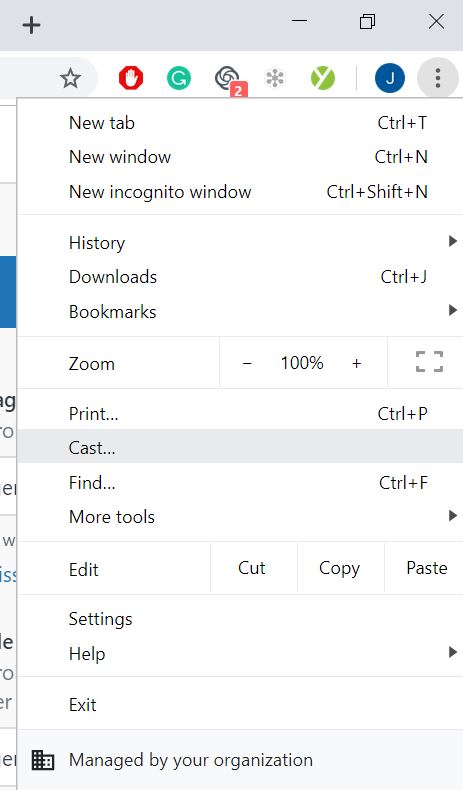
Second, try decreasing the zoom in your browser. Usually, screens are zoomed at 100% but if the aspect ratio is off then the zoom could be more or less. To do this, select the 3 dots icon on the top right of your browser. Then press the minus button where it says zoom and decrease your zoom down to 80%.
My Export Files, from Runsheet, is incomplete.
When using Export Files, you may occasionally receive a downloaded file that appears incomplete or cannot be opened normally.
What You May See
The export may complete successfully, but the downloaded file may be missing the .zip extension from its filename. Without the extension, your computer may not recognize the file as a ZIP archive.
Known Cause
Semicolons (;) in an AOI name can interfere with the naming of exported ZIP files.
When an AOI name contains a semicolon:
- The exported filename may be truncated at the first semicolon.
- In some cases, the
.zipextension may not be added to the downloaded file. - The export itself may still have completed successfully even though the downloaded file appears incomplete.
Workaround
If the downloaded file is missing its .zip extension:
- Locate the downloaded file on your computer.
- Rename the file and add
.zipto the end of the filename. - Open the renamed ZIP file normally.
For example:
Downloaded as:
Smith County Export
Rename to:
Smith County Export.zip
Avoiding the Issue
When possible, avoid using semicolons (;) in AOI names. Using an AOI name without semicolons allows the export filename to be generated normally and helps prevent filename truncation or a missing .zip extension.